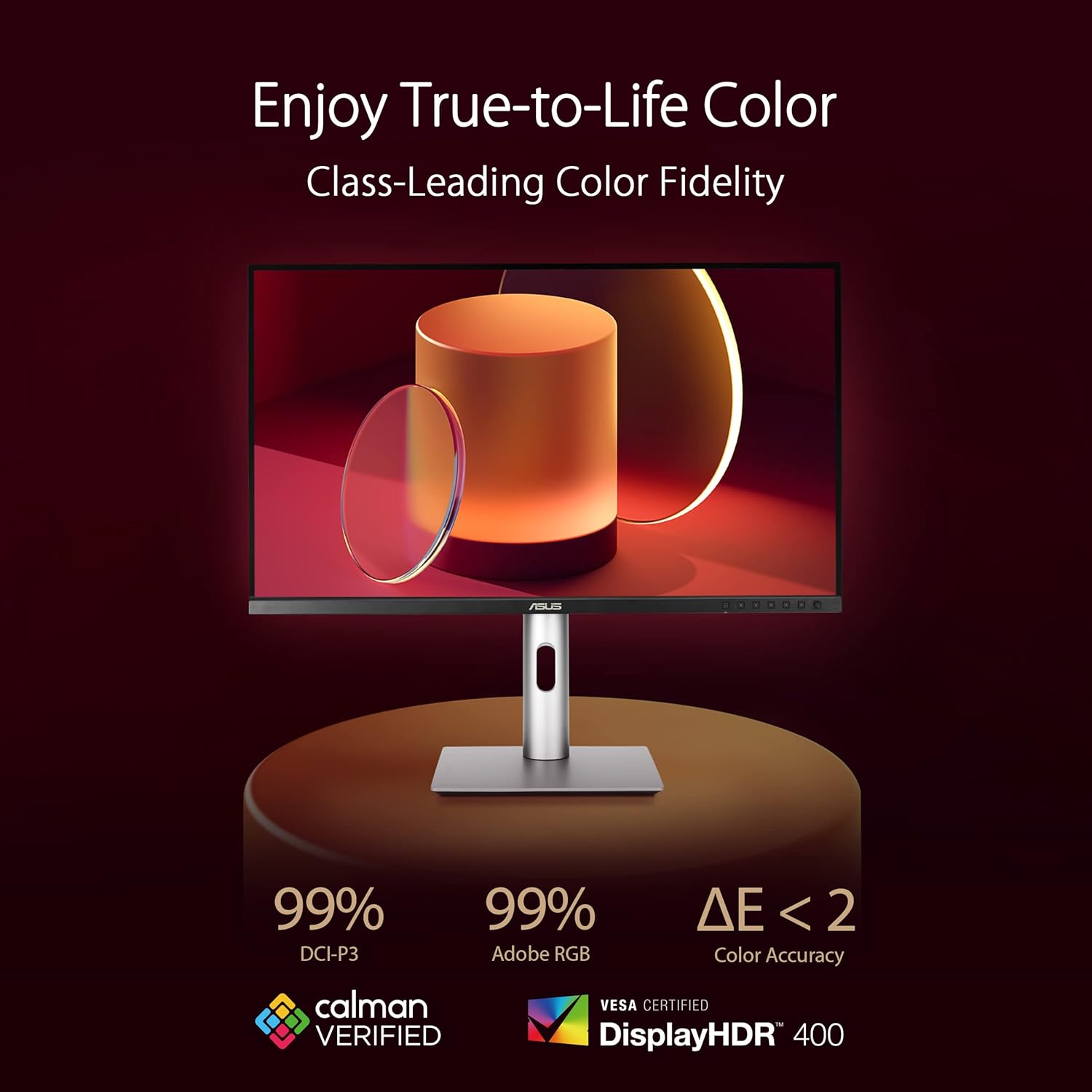
If you’ve ever sent a file to a client or a print shop and gotten back something that looked nothing like what you saw on screen, you’ve already experienced what color accuracy is really about. A monitor that’s “bright and vivid” out of the box is not the same thing as a monitor that shows you the true color of your work. Professional displays are specified using measurements most consumer monitors never mention — things like DCI-P3 coverage (a standard that defines the range of colors a screen can reproduce, developed for digital cinema), Delta-E (a number that measures how far off a displayed color is from its mathematically correct target — lower is better, and below 2 is considered imperceptible to most human eyes), and USB-C Power Delivery (a single cable that carries video signal, data, and power simultaneously). This guide walks through exactly what those specs mean, where the meaningful thresholds are, and how to match the right display to your actual workflow — whether you’re a freelancer finishing your first grading suite or a studio principal speccing six seats at once.
| EDITOR'S PICK[BenQ PD3205U Mac-Ready Monitor](https://www.amazon.com/dp/B0DBBD6LB3?tag=greenflower20-20)… | Mid-tier[ViewSonic VP2756-4K 27 Inch 4K](https://www.amazon.com/dp/B08V1225XS?tag=greenflower20-20)… | Budget pickLG 27UP650K-W 27-inch Ultrafine… | |
|---|---|---|---|
| Size | 32" | 27" | 27" |
| Color Space | 99% Rec.709 & sRGB | 100% sRGB | — |
| Delta-E | ≤3 | — | — |
| USB-C Power | 90W | 60W | — |
| Pantone Validated | — | ✓ | — |
| Price | $549.99 | $379.99 | $194.99 |
| See on Amazon → | See on Amazon → | See on Amazon → |
Why Color Gamut Actually Matters (and Why “100% sRGB” Is No Longer Enough)
The color gamut of a display describes the total range of colors it can reproduce. Think of it as the size of the palette available to the screen. For most of the 2010s, sRGB was the dominant standard — it’s still the default for web browsers, social media platforms, and most consumer content. But delivery requirements have shifted.
DCI-P3 is the color space defined by the Digital Cinema Initiatives consortium for theatrical projection and streaming mastering. It’s roughly 25% wider than sRGB in the greens and reds. When Apple adopted P3 as the native gamut for its display pipeline starting with the iMac Retina 5K, and when Netflix began requiring P3 deliverables for original content, P3 coverage became the practical minimum for anyone working in video, animation, or motion graphics destined for premium platforms.
Per PC Magazine’s buying guide coverage of professional monitors, displays marketed at creative professionals now routinely claim 95–99% DCI-P3 coverage — but claimed coverage and calibrated, measured coverage are not the same number. A panel that covers 98% of the P3 gamut with a Delta-E average of 4.2 is a worse tool for color-critical work than a panel covering 95% P3 with a Delta-E average of 1.1. The gamut ceiling is only useful if the accuracy within that gamut is trustworthy.
Adobe RGB is a parallel standard, wider than sRGB and overlapping heavily with P3 but optimized for print workflows (photography, prepress, wide-gamut inkjet output). If your pipeline includes print — packaging design, editorial photography, fine-art reproduction — Adobe RGB coverage is the spec to watch, not P3. The two standards aren’t interchangeable, and a display optimized for one isn’t automatically well-suited for the other.
The Gamut Threshold Decision Tree
- Web, social, and corporate video only: 100% sRGB coverage is sufficient. Don’t overpay for P3.
- Netflix, Apple TV+, theatrical, or HDR streaming deliverables: 95%+ DCI-P3, hardware-calibrated.
- Commercial photography, fine art, or prepress: 98%+ Adobe RGB, ideally with a built-in calibration sensor.
- Both video and print in one seat: Look for displays that switch between validated color modes — the EIZO ColorEdge line and the NEC MultiSync PA series are the references most cited across Puget Systems’ configuration recommendations and Digital Arts Online’s workflow deep-dives.
Delta-E: The Number That Separates Marketing from Measurement
Delta-E (written ΔE or dE) is the single most important spec for color-critical work, and it’s also the one most frequently misrepresented in product listings.
Here’s what the number means in plain terms: a Delta-E of 1.0 represents a color difference that is just barely perceptible to an expert observer under controlled conditions. A Delta-E of 3.0 is noticeable to a trained eye. A Delta-E above 5.0 produces visible, workflow-impactful inaccuracy — colors that look “off” even to a non-expert.
The thresholds that matter in practice:
| ΔE Range | What It Means for Your Work |
|---|---|
| < 1.0 | Reference-grade. Surgical color work, mastering, prepress. |
| 1.0 – 2.0 | Professional standard. Appropriate for broadcast, print, VFX. |
| 2.0 – 4.0 | Acceptable for design, not for color mastering. |
| > 4.0 | Consumer territory. Avoid for any color-critical deliverable. |
Notebookcheck’s display technology explainer series notes that factory-calibrated professional monitors typically ship with a per-unit calibration report documenting Delta-E maximum and average. That report matters: a display with a maximum ΔE of 2.0 is a different instrument than one with an average ΔE of 2.0. Ask for the maximum figure, or find a reviewer who publishes full ΔE distribution data rather than a single average number.
One important nuance: Delta-E is measured at the time of calibration. Panel drift is real. IPS and OLED panels shift color characteristics over time as backlights age or organic compounds degrade. Hardware-calibratable displays — those with an onboard LUT (look-up table) that a colorimeter or spectrophotometer can directly write to, rather than relying on a graphics card’s ICC profile — maintain accuracy significantly longer between calibration cycles. Tom’s Hardware’s monitor coverage consistently distinguishes between software-calibrated and hardware-calibrated panels on this basis, and it’s a distinction worth understanding before you commit to a purchase at the $2,000–$4,000 tier.
USB-C Power Delivery: Why a Single Cable Workflow Isn’t Just Convenient
USB-C Power Delivery (USB-C PD) on a professional monitor does three things over a single cable: carries a DisplayPort or HDMI Alt Mode video signal, provides a USB hub for peripherals, and delivers power back to a connected laptop. That last part — power delivery — is where the spec numbers start to matter operationally.
USB-C PD is measured in watts. A laptop that charges at 96W needs a monitor rated for at least 90W PD to charge at full speed while connected; a monitor rated at 60W will charge the same laptop slowly or not at all during heavy GPU loads. For a workstation user on a tower, this is mostly irrelevant. For a motion designer alternating between a desktop render node and a MacBook Pro or a Dell XPS for on-site client reviews, it’s a real workflow question.
The practical thresholds:
- 60W PD: Adequate for ultrabooks and thin clients. Not sufficient for 15” or 16” laptops with discrete GPUs under load.
- 90W PD: The functional minimum for most 15–16” professional laptops (MacBook Pro 16”, ThinkPad X1 Extreme, Dell Precision 5480).
- 96W PD: Full-speed charge for Apple Silicon MacBook Pro 16”. Many displays cap at 90W; verify this if you’re in a Mac-heavy studio.
Per Puget Systems’ documentation on display configurations for mobile workstation users, a monitor’s USB-C PD rating is often buried in the spec sheet under “USB-C upstream” or “power delivery” rather than headlined. Display manufacturers including EIZO, NEC, and BenQ ProDesign publish these values in their official spec tables — it’s worth pulling the PDF rather than relying on a retailer’s listing.
A related consideration: Thunderbolt 4 vs. USB4 vs. USB 3.2 upstream ports on a display affect daisy-chaining capability and bandwidth available for attached peripherals. If your desk includes a dock, a calibration device, a Wacom tablet, and external drives all feeding through the monitor’s hub, the upstream bandwidth matters. This isn’t a dealbreaker for most workflows, but it’s a real constraint in dense peripheral setups — something studio principals configuring multi-seat environments should verify against their peripheral inventory before ordering.
Matching the Display to the Workflow: A Decision Framework
Given that professional monitors at the $1,500–$6,000 price tier represent a meaningful capital commitment, the selection decision deserves the same rigor you’d apply to a GPU or a storage configuration. Here’s how we’d frame the key tradeoffs, based on published specs and the aggregated recommendations across Puget Systems, PC Magazine, Tom’s Hardware, and Digital Arts Online.
Freelancer finishing a first color-critical setup ($800–$1,500 display budget): The BenQ SW321C and the ASUS ProArt PA32UCR-K represent the upper edge of this tier and are consistently cited in PC Magazine’s professional display roundups for delivering factory calibration with maximum ΔE under 2.0 and 95%+ DCI-P3. Neither is hardware-calibratable in the sense that a colorimeter writes directly to the panel LUT — you’ll need to re-run software calibration every 3–6 months and accept some drift between cycles. For a solo freelancer delivering to broadcast or streaming specs, that’s a reasonable tradeoff at this price point.
Mid-tier studio seat ($2,000–$4,000 display budget): This is the range where hardware calibration becomes available and where the EIZO ColorEdge CG2700X and the NEC MultiSync PA311D are the most frequently recommended references. Both support hardware LUT calibration via a colorimeter — EIZO’s own ColorNavigator software with a supported i1Display or X-Rite device, for example — which means calibration data lives in the display’s processor rather than the graphics pipeline. Puget Systems’ display documentation specifically recommends this approach for grading, VFX compositing, and prepress work where ICC profile-based calibration introduces render pipeline variables.
Premium reference display ($4,000–$7,000+): The EIZO ColorEdge CG319X (a 31.1” 4K DCI panel) is the editorial benchmark most cited by colorists and studio operators for mastering work. Its built-in front sensor enables self-calibration on a schedule without a separate colorimeter device. For a studio principal equipping a grading suite or a VFX supervisor certifying a render pipeline, this removes a recurring operational variable. Digital Arts Online’s coverage of color-managed pipeline setups treats the CG319X as the reference against which mid-tier panels are evaluated — not because it’s the only good display, but because it defines the accuracy ceiling for IPS LCD at this panel size.
The Honest Short List
If you’re currently under deadline on a workstation configuration decision, here’s the plain-language version:
- If your budget is under $1,500 for the display: The BenQ SW or ASUS ProArt PA series, factory-calibrated, will serve broadcast and streaming deliverables well. Plan to recalibrate with a software-based colorimeter workflow every quarter.
- If you’re speccing a permanent seat for color work and can reach $2,500–$4,000: Hardware-calibratable EIZO ColorEdge or NEC MultiSync PA series. The accuracy delta over time justifies the price.
- If you’re equipping a mastering suite or grading room: The CG319X or equivalent self-calibrating reference panel is the defensible choice. The cost is real; so is the operational reliability.
- If USB-C single-cable workflow matters for a laptop-primary setup: Verify PD wattage in the actual spec PDF before ordering. 90W is the functional floor for 15–16” professional laptops; 60W is a compromise most working professionals will feel within a month.
We haven’t personally measured any of these panels in a controlled environment — our analysis draws from published specs, manufacturer documentation, and the aggregated findings of reviewers at Puget Systems, Tom’s Hardware, Notebookcheck, PC Magazine, and Digital Arts Online. Where those sources converge on a recommendation, we reflect that consensus. Where they diverge, we’ve tried to name the tradeoff explicitly rather than paper over it. That’s the most honest thing we can offer: the homework, clearly labeled.