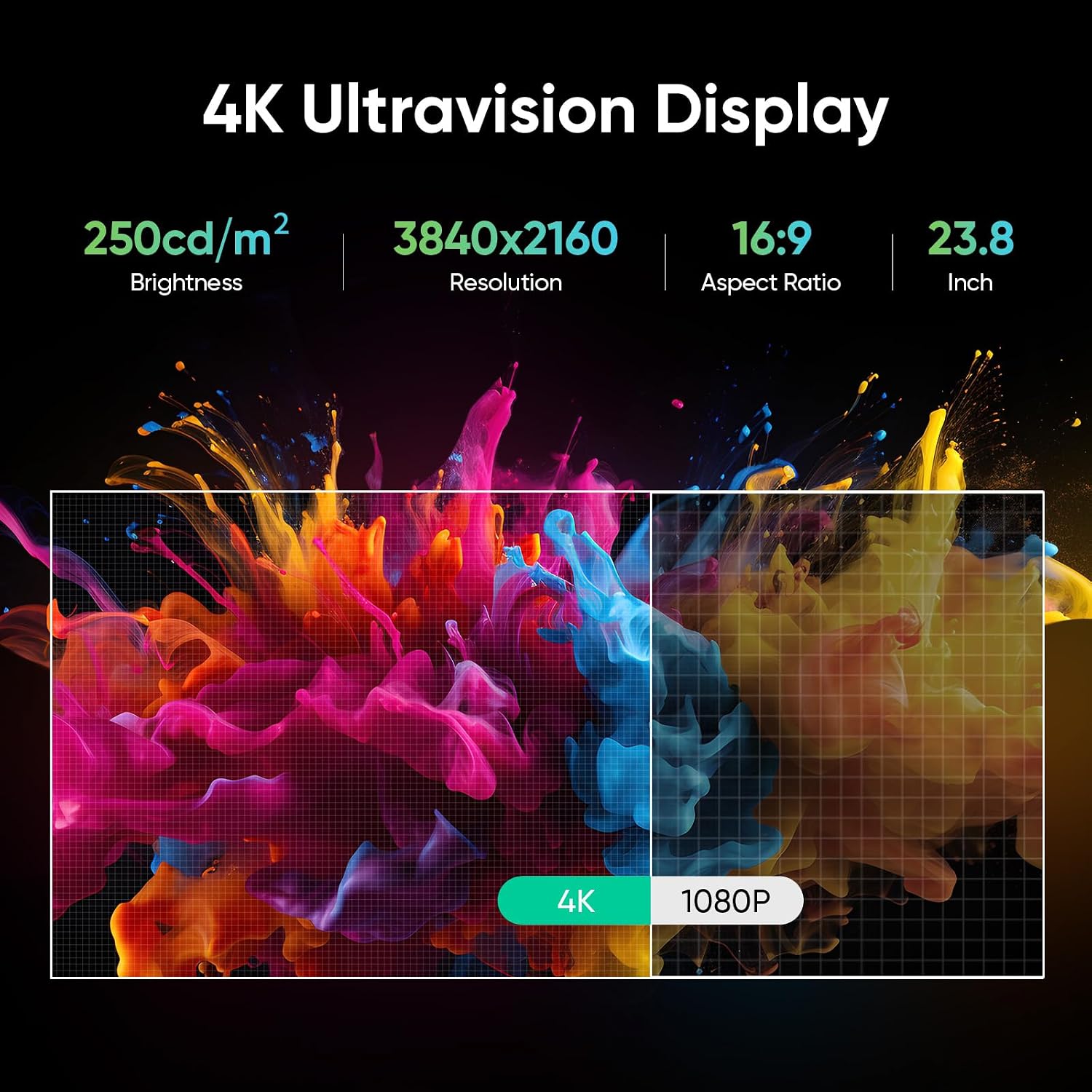
A pen display is a monitor you draw on directly — like a digital sketchpad — where a pressure-sensitive stylus replaces your mouse or graphics tablet. Unlike a regular drawing tablet (where you look at a screen while your hand moves on a separate surface), a pen display shows your artwork exactly where your pen touches, which feels far more intuitive for detailed illustration work. For VFX concept artists and storyboard artists, the device sitting between your ideas and the production pipeline matters enormously: a display that can’t accurately show the colors your compositors will use downstream creates rework, and a pen that loses responsiveness mid-stroke costs you the fluidity that makes drawn concepts convincing. This guide walks through the three variables that actually drive purchasing decisions — pressure sensitivity, color gamut coverage, and physical screen size — and ends with a decision framework calibrated to where you sit in a production pipeline.
Pressure Sensitivity: Where the Marketing Numbers Actually Matter (and Where They Don’t)
The industry moved from 1,024 pressure levels to 2,048 and then to 8,192 over roughly a decade. The Wacom Cintiq Pro 27 spec sheet lists 8,192 levels of pressure sensitivity along with tilt recognition at ±60 degrees. Huion’s Kamvas Pro line and XPPen’s Artist Pro series have matched 8,192 levels at significantly lower price points. So is the number itself still a differentiator in 2026? Mostly no — but the implementation still is.
What the raw level count doesn’t capture is initial activation force (the minimum pressure required before the tablet registers a mark) and linearity (whether the pressure curve from light to heavy is smooth and consistent). PCMag’s 2025 Best Drawing Tablets roundup notes that entry-level 8,192-level devices frequently have higher initial activation forces and less consistent mid-range pressure response than premium offerings — meaning fine hairlines and subtle value gradations, exactly the kind of line quality that defines polished concept art, still favor higher-end hardware even when the spec headline looks identical.
For storyboarding specifically, where you’re often working fast and loose — blocking compositions, indicating camera moves, capturing acting beats — the difference between 2,048 and 8,192 levels is largely imperceptible. The speed of stroke registration (report rate, measured in points per second) matters more. A rate below 200 PPS starts introducing perceptible lag on fast gestural lines. Most current mid-tier displays from Wacom, Huion, and XPPen exceed 200 PPS; the Cintiq Pro 27 spec sheet lists 250 PPS.
The practical rule: If your workflow is primarily fast storyboarding or rough ideation, you can safely step down from the top-end Wacom hardware and not feel the pressure difference. If you’re producing finished concept art with controlled linework, subtle texturing, or color comps that go directly to production review, the implementation quality of a premium stylus system justifies its price.
Color Gamut: The Spec Your Compositor Will Eventually Ask About
Color gamut refers to the range of colors a display can physically reproduce. The two reference spaces that matter most in a VFX/broadcast pipeline right now are DCI-P3 (the standard for digital cinema content, covering roughly 26% more colors than the older sRGB standard used by most consumer monitors) and Rec. 2020 (the wider standard for HDR broadcast and streaming delivery, though few displays fully cover it in practice).
Here’s why this matters operationally: concept art doesn’t exist in isolation. Your color palettes, lighting references, and asset comps feed into look development, which feeds into compositing. If your pen display is only showing you sRGB while the compositor downstream is working in P3-referenced ACES, the warm amber sky you painted will look cooler and flatter in the actual grade. You may not be the one signing off on color — that’s the colorist’s job — but inaccurate early color creates misaligned expectations with directors and VFX supervisors at review.
By the Numbers — Display Color Gamut, Mid-2026 Market:
| Display | Gamut Coverage (claimed) | Panel Type | Street Price (approx.) |
|---|---|---|---|
| Wacom Cintiq Pro 27 | 99% DCI-P3 | IPS | ~$3,499 |
| Huion Kamvas Pro 24 4K | 99% DCI-P3 | IPS | ~$1,099 |
| XPPen Artist Pro 24 Gen 2 | 99% Adobe RGB | IPS | ~$799 |
| EIZO ColorEdge CS2740 (non-touch) | 99% DCI-P3 | IPS | ~$2,199 |
Two things jump off that table. First, DCI-P3 coverage at 99% is now table stakes even at the $800–$1,100 tier. Second, EIZO’s ColorEdge line doesn’t have stylus input — it’s a professional color reference monitor, not a pen display — but it’s included here because some high-end concept artists pair a separate screenless tablet with an EIZO for color-critical review, a workflow worth knowing about.
The EIZO ColorEdge CS2740 product page notes factory calibration with individual ICC profiles shipped with each unit. Tom’s Hardware’s review of the Cintiq Pro 27 points out that Wacom’s factory calibration process has improved significantly but that units still vary enough that studios doing color-critical work should validate with a hardware colorimeter (such as the X-Rite i1Display Pro) on delivery. Digital Arts Online’s 2025 pen display roundup echoes this, noting that “claimed 99% P3 from any manufacturer is a target, not a guarantee — calibrate before you paint anything that goes to a client.”
Delta E (often written ΔE) is the metric that quantifies color accuracy: it measures the perceptible difference between the display’s output and the target value. A ΔE below 2.0 is generally accepted as “indistinguishable to the human eye” in professional contexts. Delta E below 1.0 is the territory of dedicated color reference monitors. The Cintiq Pro 27 spec sheet claims a factory-calibrated ΔE of less than 2.0; independent reviewers at Tom’s Hardware confirm figures generally in the 1.5–2.5 range unit-to-unit, which is acceptable for concept work but not for final color grading.
If your deliverable is concept art that goes to production review, ΔE <2.0 is sufficient. If you’re also producing color scripts or final palette references that go directly to the colorist without a dedicated grading station in the chain, you need either a hardware-calibrated pen display or a separate color-reference monitor in your setup.
Screen Size: Matching Physical Scale to Your Workflow Pattern
This is the most personal of the three variables, but there are structural patterns worth naming.
16-inch class (the Wacom Cintiq Pro 16, Huion Kamvas Pro 16): Portable, compact enough to use on a desk alongside a primary display or on a drawing stand at angle. Reviewers consistently note that 16 inches at 4K resolution means very high pixel density — around 280 PPI — which is excellent for fine linework but can cause eye fatigue in multi-hour storyboarding sessions if the display is positioned close. The practical working area (the active drawing surface inside the bezel) on 16-inch displays is roughly equivalent to a large sketchbook page. For storyboarding where you’re working panel-to-panel at speed, this size allows fluid wrist-and-elbow movement without the arm fatigue of larger formats. Puget Systems’ workflow analysis notes that concept artists working primarily in Photoshop or Procreate-equivalent tools on Windows report no significant productivity loss moving from 24-inch to 16-inch pen displays when using multi-monitor setups (the pen display for drawing, a separate monitor for UI and reference).
24-inch class (Huion Kamvas Pro 24, XPPen Artist Pro 24 Gen 2, Wacom Cintiq Pro 24): The workhouse size for studio environments. Enough surface area to work at full arm extension for large gestural strokes, while remaining desk-compatible without a dedicated drawing table. At 4K, pixel density sits around 185 PPI — visually sharp without the fatigue risk of the 16-inch. Digital Arts Online’s 2025 roundup names the 24-inch form factor as “the default for studio concept artists who spend eight-plus hours a day on the device.” The trade-off is desk real estate: a 24-inch pen display plus a reference monitor plus a workstation tower fills a standard desk almost completely.
27-inch class (Wacom Cintiq Pro 27): The clearest tradeoff in the lineup. You gain meaningful working area for large-format illustration, environment concept work, and architectural visualization storyboards. The Cintiq Pro 27 at approximately $3,499 street price (as of mid-2026) is positioned as the premium choice for artists who need that surface area and the best-in-class stylus implementation simultaneously. The counterargument is straightforward: the Huion Kamvas Pro 24 4K at roughly $1,099 covers the same P3 gamut specification at a 3-inch smaller diagonal. If you’re a freelancer, the delta covers a month of software subscriptions or a high-quality drawing stand and arm. If you’re a studio principal buying twelve seats, the delta is substantial enough to warrant a real cost-benefit conversation.
Decision Framework: If X, Then Y
You now have the three variables. Here’s how to collapse them into a decision:
If you’re a freelance storyboard artist primarily doing production boarding (not final color work, not polish passes), your color fidelity floor is lower and your speed requirements are higher. The Huion Kamvas Pro 24 4K or XPPen Artist Pro 24 Gen 2 at the $800–$1,100 tier covers DCI-P3 at a spec level that won’t embarrass you in client review, and neither will the pressure sensitivity at speed. Calibrate with a colorimeter once per quarter. This is the financially defensible choice.
If you’re a concept artist producing finished key art or color scripts that go directly to director review or VFX supervision, you need confirmed ΔE <2.0 and consistent pressure linearity for controlled linework. The Wacom Cintiq Pro 27 is the spec-sheet and owner-report leader in this tier. At ~$3,499 it’s a significant outlay, but it’s the device that reviewers at PCMag and Tom’s Hardware consistently identify as the reference point other devices are measured against. If budget is constrained, the Cintiq Pro 24 (non-4K) delivers comparable stylus quality at a lower price; the resolution reduction is a real trade-off for ultra-detailed work.
If you’re a VFX pipeline supervisor outfitting multiple concept art seats, the per-unit math matters more than it does for a solo freelancer. At studio scale, the Huion Kamvas Pro 24 4K at approximately $1,100 per seat versus the Cintiq Pro 27 at $3,500 per seat is a $2,400 difference per artist. Across ten seats that’s $24,000 — a number that justifies a structured evaluation workflow: deploy two or three units of each, collect structured feedback from artists at 30 and 60 days, and let the workflow data drive the decision. Puget Systems’ approach to workstation configuration for VFX pipelines — documented in their workflow analysis publications — consistently argues for structured per-workflow benchmarking over spec-sheet purchasing, and that principle applies equally to pen displays.
The pressure spec arms race has largely plateaued. Color gamut coverage at P3 is now a baseline expectation, not a differentiator. Screen size is a workflow fit question more than a quality question. What remains as a genuine differentiator at the high end is implementation quality — stylus feel, calibration consistency, driver stability — and that’s something no specification table fully captures. Owners consistently report that the Wacom driver ecosystem, despite its complexity, remains more stable in professional production environments running Autodesk, Adobe, and Foundry software stacks than alternatives. That’s not a reason to overpay if your workflow doesn’t demand it. But it’s a real factor worth weighing before you sign the PO.